


In Part 1, we covered the theory. In Part 2, we got hands-on; repos, branches, merges, pull requests. If you've been following along, you've got a network-configs repo with switch configs, ACLs, a QoS policy, NTP config, and a .gitignore. You can create branches, handle merge conflicts, and open PRs.
That's great. But there's a level of Git that separates "I know how to use it" from "I'm actually comfortable with it." That's what this post is about, and I hope by the end of this, you come away with that exact feeling.
We're covering rebasing, squashing, stashing, cherry-picking, tagging, amending commits, and the safety net that means you can try all of this without fear. These aren't obscure power-user tricks, they're tools that make your day-to-day workflow cleaner, your history more readable, and your collaboration smoother.
Same repo, same configs, building on what we've already done.
If you skipped the previous post, you can obtain the current state of the files and folders here.
Housekeeping - Adding a README
Before we get into the advanced stuff, let's do something we probably should have done earlier. Every repo needs a README. It's the first thing anyone sees on GitHub; what this repo is, what's in it, how to use it.
In the root of your network-configs repo, create a README.md:
# Network Configs

Configuration files for the London DC core network infrastructure.

## Structure

- `configs/` - Device configurations, ACLs, and policies
  - `core-sw01.cfg` - Core switch 01 (VLANs, SVIs, management)
  - `acl-vlan10.cfg` - Management VLAN access control list
  - `qos-policy.cfg` - WAN edge QoS policy (voice, video, network-control)
  - `ntp.cfg` - NTP configuration with authentication

## Branching Convention

- `main` - Production-ready configs
- `feature/*` - New features or config additions
- `hotfix/*` - Urgent production fixes
Commit and push it:
git add README.md
git commit -m "Add README with repo structure and branching conventions"
git push
Done. Nothing groundbreaking, but it's good practice and now anyone landing on this repo knows what they're looking at. If you're working in a team, this is the difference between "What the hell is this?" and "Ah, got it".
 Dan Jones
Git Stash - The Quick Save You'll Actually Use
We touched on git stash briefly in the last post. But it deserves more attention because you'll reach for it often.
Here's the scenario: you're halfway through editing the QoS policy on a feature branch when your phone goes off. There's a routing loop on the core switch, and you need to push a hotfix immediately. You're not ready to commit your QoS changes as theyre half done, but you can't switch branches with a dirty working directory.
This is exactly what git stash is for.
Let's walk through it. Start on a feature branch with some uncommitted work:
git switch -c feature/qos-updateEdit configs/qos-policy.cfg , say you're adjusting the video bandwidth allocation:
 class VIDEO
  bandwidth percent 35
And you've started adding a new class, but haven't finished:
class-map match-any SCAVENGER
 match dscp cs1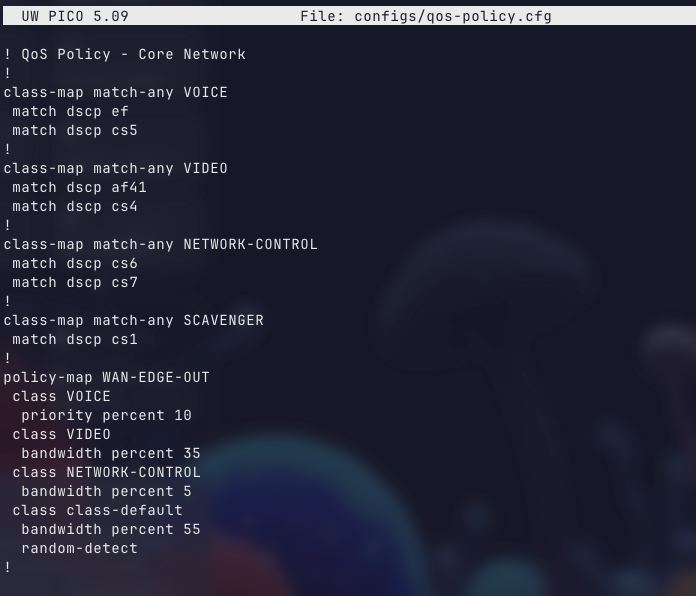
Now you need to drop everything. Run the below command in the qos-update branch to stash away your changes.
git stashSaved working directory and index state WIP on feature/qos-update: 349f7f9 Add NTP configuration with authenticationYour working directory is clean.
Open up the configs/qos-policy.cfg file again, you'll notice the changes we made are no longer visible.
The half-done changes are safely stored. Switch branches, do whatever you need to do:
git switch main
git switch -c hotfix/core-routing
# Fix the issue, commit, push, merge; whatever's needed
# No requirement to do this, purely example
When the fire's out, come back to your work:
git switch feature/qos-update
git stash pop
Your uncommitted changes are back, exactly where you left them.
Stash Management
Sometimes "fires" overlap. You might stash multiple times before getting back to any of them. Git handles this, stashes work like a stack.
# See what you've stashed
git stash list
stash@{0}: WIP on feature/qos-update: 43dec0 Add NTP config
stash@{1}: WIP on feature/acl-cleanup: fb3123d Update management ACL
# Example output. You won't have anything stashed.# Apply a specific stash without removing it from the list
git stash apply stash@{1}
# Apply and remove the most recent stash
git stash pop
# Drop a specific stash you no longer need
git stash drop stash@{1}
# Nuclear option - clear all stashes
git stash clearOne thing to keep in mind: stashes are local. They don't get pushed to GitHub/ version control. If you stash work for days, you probably want a commit on a branch instead. A messy "WIP" commit is better than a stash you forget about.
Stashing with a Message
Default stash messages aren't really helpful. If you're going to stash multiple things, label them:
git stash push -m "QoS: half-done scavenger class addition"git stash push is the explicit version of git stash , they do the same thing. The -m flag belongs to the push sub-command, so when you want to add a message/ label, you need to provide the full/ explicit command.Now git stash list actually tells you something useful:
stash@{0}: On feature/qos-update: QoS: half-done scavenger class additionMarginally better than WIP on feature/qos-update , right?
Amending Commits - Fixing What You Just Did
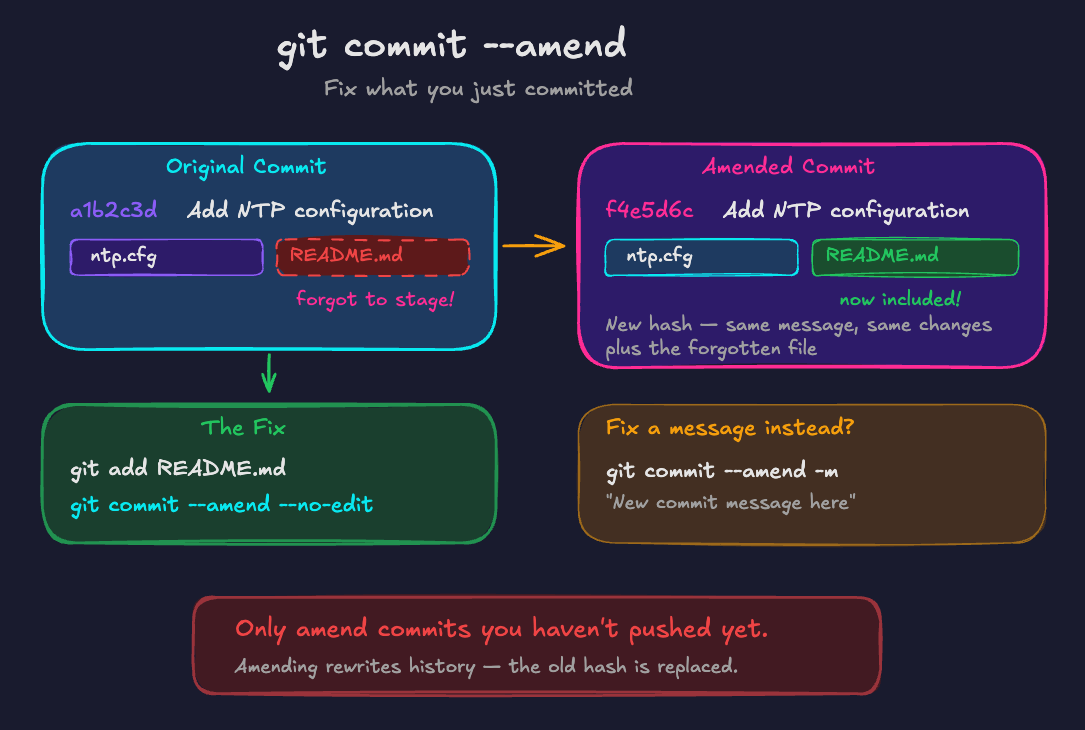
You commit... and immediately notice you left a debug comment in the config. Or the commit message has a typo. Or you forgot to stage a file. Or.. Well.. Anything really.
If it's your most recent commit and you haven't pushed yet, git commit --amend is your friend.
Fix a commit message:
git commit --amend -m "Add NTP configuration with MD5 authentication"This replaces the last commit message entirely.
Add a forgotten file:
Let's say you committed the NTP config but forgot to update the README:
# Edit README.md to add the NTP entry
git add README.md
git commit --amend --no-edit
--no-edit keeps the original commit message. The amended commit now includes the README change as if you'd staged it the first time.
Rebasing - The One Everyone's Afraid Of
This is a biggy. If you've heard anything about rebasing, it was probably "don't do it" or "it's dangerous". It's neither. It's just a different way to integrate changes, and once you understand what it's actually doing, it becomes one of the most useful tools in your arsenal.
Let's start with the problem that rebase solves.

Join our new Discord community where we discuss everything; infra, cloud, AI and much more. Come vent, discuss tech problems, or just have a place to hang out with like-minded individuals.
The Merge Commit Problem
You've been working on a feature branch for a couple of days. Meanwhile, other changes have been merged into main. When you merge your branch, Git creates a merge commit, and if this happens a lot, your history starts looking like a bowl of spaghetti.
Here's what a merge-heavy history might look like:
*   e5f6a7b Merge branch 'feature/ntp-config'
|\
| * d4e5f6a Add NTP configuration
* |   c3d4e5f Merge branch 'feature/acl-update'
|\ \
| * | b2c3d4e Update management ACL
| |/
* | a1b2c3d Add monitoring VLAN
|/
* 9f8e7d6 Initial commit
Every merge creates a junction point. With a small team this is fine. But when you've got multiple engineers all merging feature branches daily, the history becomes hard to follow. It works, but it's noisy.
What Rebase Actually Does
Rebase takes your branch's commits and replays them on top of the latest main. Instead of creating a merge commit, it rewrites your commits as if you'd started your branch from the current state of main all along.
Think of it this way: you branched off main on Monday to work on a new OSPF config. By Wednesday, two other changes have landed on main. Rebase says, "let me take your OSPF commits, temporarily set them aside, fast-forward to where main is now, and then replay your commits on top."
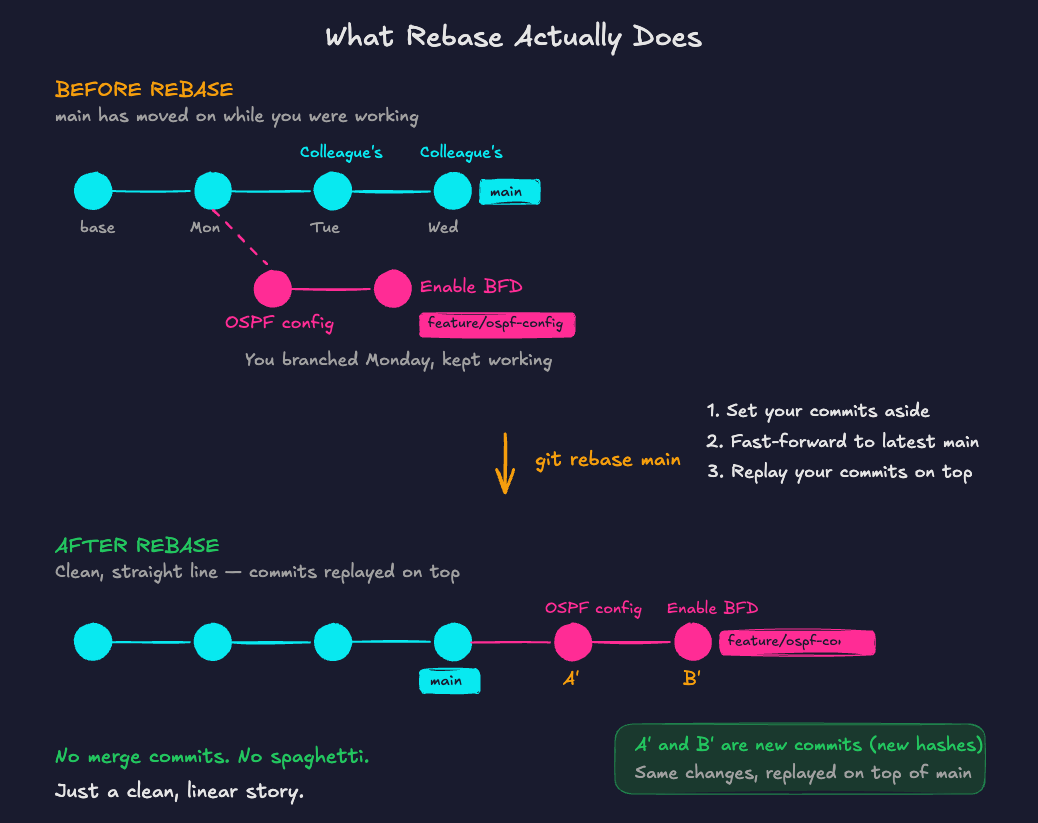
The result is a straight line of history instead of a mess of merge commits.
Rebase in Action
Let's set up a realistic scenario. You're adding a new OSPF configuration while a colleague pushes an update to the core switch config on main.
Create a new working branch:
git switch -c feature/ospf-configCreate configs/ospf.cfg:
! OSPF Configuration - Core Router
!
router ospf 1
 router-id 10.0.0.1
 network 10.0.10.0 0.0.0.255 area 0
 network 10.0.20.0 0.0.0.255 area 0
 network 10.0.30.0 0.0.0.255 area 0
 passive-interface default
 no passive-interface GigabitEthernet0/0
!
Add the file and commit:
git add configs/ospf.cfg
git commit -m "Add OSPF config for core router"
Let's add a second commit, enable BFD for faster convergence:
# Edit configs/ospf.cfg to add BFD
 router ospf 1
  bfd all-interfaces
Add the file and commit:
git add configs/ospf.cfg
git commit -m "Enable BFD on OSPF interfaces"
Meanwhile, a change lands on main. Switch to main and simulate a colleague's merged change:
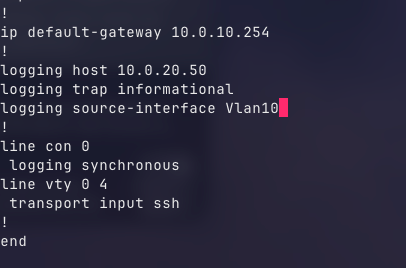
git switch mainEdit configs/core-sw01.cfg , add logging config at the end:
!
logging host 10.0.20.50
logging trap informational
logging source-interface Vlan10
!
git add configs/core-sw01.cfg
git commit -m "Add syslog configuration to core switch"
Now the setup looks like this:
Your branch:   main --- A --- B (feature/ospf-config)
                  \
Main moved:        --- C (syslog config)
Your branch diverged from main at point A, and main has moved on.

The Merge Approach
As we already know, if you merged, Git would create a merge commit tying the two histories together. That works. But let's try rebase instead.
The Rebase Approach
git switch feature/ospf-config
git rebase main
Successfully rebased and updated refs/heads/feature/ospf-config.What happened? Git took your two commits (OSPF config and BFD), temporarily removed them, moved your branch pointer to where main is now (including the syslog commit), and then replayed your commits on top.
Before rebase:   main --- C
                   \
                    A --- B (feature/ospf-config)

After rebase:    main --- C --- A' --- B' (feature/ospf-config)
Notice the A' and B' , these are new commits with new hashes. They contain the same changes, but they've been recreated on top of C. The history is now a clean straight line.
When you merge this into main, it's a fast-forward, no merge commit needed:
git switch main
git merge feature/ospf-config
Fast-forward
configs/ospf.cfg | 12 ++++++++++++
1 file changed, 12 insertions(+)Clean history. One line. Every commit visible and meaningful.
Handling Conflicts During Rebase
Rebase can hit conflicts, just like merge. The difference is that rebase replays your commits one at a time, so you resolve conflicts per-commit rather than all at once.
If a conflict occurs:
CONFLICT (content): Merge conflict in configs/core-sw01.cfg
error: could not apply a1b2c3d... Add OSPF config for core router
# Fix the conflict in the file, then:
git add configs/core-sw01.cfg
git rebase --continueIf it gets messy or you want to start over:
git rebase --abortThis puts everything back exactly how it was before you started the rebase. No damage done. This is why rebase isn't dangerous, you can always bail out.
The Golden Rule of Rebasing
Never rebase commits that have been pushed to a shared branch that others are working on.
Rebase rewrites commit hashes. If someone else has based their work on commits you then rebase (and force push), their history and yours diverge in a way that's painful to fix. Nobody wants to be that guy.
The rule in practice:
- Rebasing your own local feature branch before merging? Always fine.
- Rebasing a feature branch you've pushed to GitHub but nobody else is working on? Fine, but you'll need to force push (
git push --force-with-lease). - Rebasing
mainor any shared branch? Don't.
--force-with-lease is a safer version of --force. It checks that nobody has pushed to the remote branch since you last fetched. If they have, it refuses the push rather than overwriting their work. Always use it instead of --force.
When to Rebase vs. Merge
Both are tools with trade-offs:
Use rebase when you want clean, linear history. Typically, before merging a feature branch. Your branch's commits sit neatly on top of main and the log reads like a chronological story.
Use merge when you want to preserve the full picture of how things happened, who changed what, when it was merged, and where branches split and joined. This matters more in teams with strict audit or compliance requirements.
A common workflow combines both: while working on your feature branch, rebase it onto main to pick up the latest changes and keep your history clean. This doesn't touch main , it only updates your branch. Then, when you're ready, open a pull request to merge your branch into main. You get clean history on the branch and the PR gives you the review and audit trail.
Interactive Rebase - Cleaning Up Before You Share
Below, we'll create some new commits. The contents here are of no concern; we're simply practicing further Git interactions.
# Create a feature branch to work on
git switch -c feature/ospf-dist-config

# Commit 1 - start the OSPF config
echo '! OSPF Configuration
router ospf 1
 router-id 10.0.0.1
 network 10.0.10.0 0.0.0.255 area 0' > configs/ospf-dist.cfg
git add configs/ospf-dist.cfg
git commit -m "Add OSPF baseline config"

# Commit 2 - forgot a subnet
echo ' network 10.0.20.0 0.0.0.255 area 0' >> configs/ospf-dist.cfg
git add configs/ospf-dist.cfg
git commit -m "Forgot to add area to OSPF"

# Commit 3 - add passive interfaces, still figuring it out
echo ' passive-interface default' >> configs/ospf-dist.cfg
git add configs/ospf-dist.cfg
git commit -m "Add OSPF config - WIP"

# Commit 4 - realise we need to unshut an interface
echo ' no passive-interface GigabitEthernet0/0' >> configs/ospf-dist.cfg
git add configs/ospf-dist.cfg
git commit -m "Actually fix the network statement"

# Commit 5 - add the third subnet we missed
echo ' network 10.0.30.0 0.0.0.255 area 0' >> configs/ospf-dist.cfg
git add configs/ospf-dist.cfg
git commit -m "Forgot to add area to OSPF again"

# Commit 6 - tidy up the description
echo '!' >> configs/ospf-dist.cfg
git add configs/ospf-dist.cfg
git commit -m "Fix typo in OSPF config"
So far, we've been hacking away on a branch and our commit history looks something like this:
git log --oneline08a05d5 (HEAD -> feature/ospf-dist-config) Fix typo in OSPF config
dc44c6e Forgot to add area to OSPF again
b67c1e4 Actually fix the network statement
b00c8d1 Add OSPF config - WIP
61df350 Forgot to add area to OSPF
f204fec Add OSPF baseline configSix commits, three of which are basically "oops, I messed up". Pushing this to a PR means your reviewers have to wade through your stream of consciousness. Nobody needs to see your debugging process.
Interactive rebase lets you clean this up before anyone else has to look at it.
git rebase -i HEAD~6This opens your editor with something like:
pick f204fec # Add OSPF baseline config
pick 61df350 # Forgot to add area to OSPF
pick b00c8d1 # Add OSPF config - WIP
pick b67c1e4 # Actually fix the network statement
pick dc44c6e # Forgot to add area to OSPF again
pick 08a05d5 # Fix typo in OSPF config
You can change the pick keyword to tell Git what to do with each commit:
pick- keep this commit as-issquash(ors) - merge this commit into the previous onefixup(orf) - like squash, but discard this commit's messagereword(orr) - keep the commit but change its messagedrop(ord) - delete this commit entirelyedit(ore) - pause here so you can make changes
Squashing - Combining Messy Commits Into Clean Ones
Let's clean up that OSPF history. We want three clean commits: one for the OSPF config (combining all the false starts), one for the ACL fix, and one final tidy-up.
pick a1b2c3d Add OSPF baseline config
fixup b2c3d4e Forgot to add area to OSPF
pick c3d4e5f Fix ACL deny line
fixup d4e5f6a Add OSPF config - WIP
fixup e5f6a7b Actually fix the network statement
fixup f6a7b8c Fix typo in OSPF config
Save and close. Git replays the commits, combining the fixup commits into their parent. The result:
git log --onelinec4c0611 (HEAD -> feature/ospf-dist-config) Add OSPF config - WIP
c0869cd Add OSPF baseline configTwo clean and meaningful commits. Your reviewer sees what actually matters: a complete OSPF config and an ACL fix. Not the three hours of faffing and errors it took to get there.
If you'd used squash instead of fixup, Git would have opened your editor with all the commit messages combined, letting you write a new consolidated message. fixup just silently discards the message, useful when the commits are clearly just corrections.
Join our new Discord community where we discuss everything; infra, cloud, AI and much more. Come vent, discuss tech problems, or just have a place to hang out with like-minded individuals.
Cherry-Pick - Taking Specific Commits
Sometimes you need one specific commit from another branch without merging the entire thing.
Real-world scenario: a colleague is working on a big firewall policy overhaul on feature/firewall-redesign. It's weeks from being ready, but buried in that branch is a single commit that fixes a critical SNMP community string typo that's breaking your monitoring right now.
# Find the commit hash
git log --oneline feature/firewall-redesign
h8i9j0k Update zone-based policy rules
g7h8i9j Restructure firewall interfaces
f6g7h8i Fix SNMP community string typo <-- this one
e5f6g7h Begin firewall policy redesigngit switch main
git cherry-pick f6g7h8iThat single commit, the SNMP fix, is now applied to main. The rest of the firewall work stays on its branch.
A few things to note about cherry-pick:
It creates a new commit with a new hash (similar to rebase). The change is the same, but Git doesn't track any relationship between the cherry-picked commit and the original. If the commit you're picking touches the same lines as something on your current branch, you'll get a conflict to resolve, same process as any other conflict (you know the drill by now).
Tags - Marking Points in Time
Branches move. Every new commit advances the branch pointer. Sometimes you need to mark a specific point in history that doesn't move, a known-good baseline, a config version that passed audit, or the state of things before a major change window.
That's what tags are for.
Create a tag:
# Lightweight tag - just a pointer
git tag v1.0

# Annotated tag - includes a message, author, date (preferred for anything meaningful)
git tag -a v1.0 -m "Baseline configs - pre-OSPF deployment"
Push tags to GitHub:
# Push a specific tag
git push origin v1.0

# Push all tags
git push --tags
List and use tags:
# See all tags
git tag

# See tag details
git show v1.0

# Check out a tagged version (detached HEAD - read only, don't commit here)
git checkout v1.0
For network engineering, tags are a natural fit. Think about your change windows: before deploying a new routing protocol across the network, tag the current state. If it goes sideways, you've got an instant, named reference point to compare against or roll back to.
git tag -a pre-ospf-deployment -m "Baseline before OSPF rollout - change CHG001234"That ties your Git history directly to your change management process.
Reflog - The Safety Net
Here's the thing that should make you worry less about all of this: Git almost never permanently deletes anything. Even if you rebase, amend, reset, or delete a branch, the old commits still exist in Git's reflog for at least 30 days.
git refloga1b2c3d (HEAD -> main) HEAD@{0}: merge feature/ospf-config: Fast-forward
c3d4e5f HEAD@{1}: checkout: moving from feature/ospf-config to main
b2c3d4e HEAD@{2}: rebase (finish): refs/heads/feature/ospf-config
9f8e7d6 HEAD@{3}: rebase (start): checkout main
d4e5f6a HEAD@{4}: commit: Enable BFD on OSPF interfaces
e5f6a7b HEAD@{5}: commit: Add OSPF config for core routerThe reflog records every action that changed where HEAD points. If you rebase and hate the result:
# Find the commit hash from before the rebase
git reflog

# Reset back to that point
git reset --hard HEAD@{4}
Everything is restored. The rebase is undone.
This is why "I broke everything with rebase" is almost always recoverable. The reflog is your time machine. The only way to actually lose work is to run git reflog expire or wait 30+ days and run garbage collection.
A couple of caveats:
- reflog is local. It doesn't get pushed to GitHub.
- It only tracks actions on your machine, so it won't help if you overwrote a colleague's work on the remote.
Useful Aliases - Because Life's Too Short
If you're running these commands regularly, give your fingers a break. Git supports aliases for frequently used commands:
git config --global alias.st status
git config --global alias.co checkout
git config --global alias.sw switch
git config --global alias.br branch
git config --global alias.lg "log --oneline --graph --decorate --all"
git config --global alias.last "log -1 HEAD"
git config --global alias.unstage "reset HEAD --"
Now instead of:
git log --oneline --graph --decorate --allYou just type:
git lgThe lg alias is great, it gives you a visual branch graph in a compact format. You'll use it a lot when working with multiple branches.
You can now safely delete the Git repo we've been working on throughout this part of the series, play around further with the skills you've learned so far, or keep it for future reference. Totally your call!
Future articles in the series will involve real configurations being pushed to devices.
What's Next
You now have a Git workflow that goes beyond the basics. You can keep a clean history, handle interruptions without losing work, selectively pick commits, and mark important milestones. More importantly, you know that the reflog has your back when you're experimenting.
The Git portion of this series is now done. You've gone from "What's version control?" to a workflow that most developers would consider solid. That's no minor thing!
Next, we're shifting gears entirely.
We'll look at APIs and network programmability, why the CLI isn't enough when you want to automate at scale, how REST APIs, NETCONF, and gRPC give you programmatic access to your network devices, and why this ties directly into the version-controlled workflow we've built here. The configs are in Git.
The next question is: "how do you push them to devices without SSH and copy-paste?"


